

Import and export safely
Preview incoming records and choose the right transfer format.
Before you start
Make a verified backup before a large import or replacement.
Steps
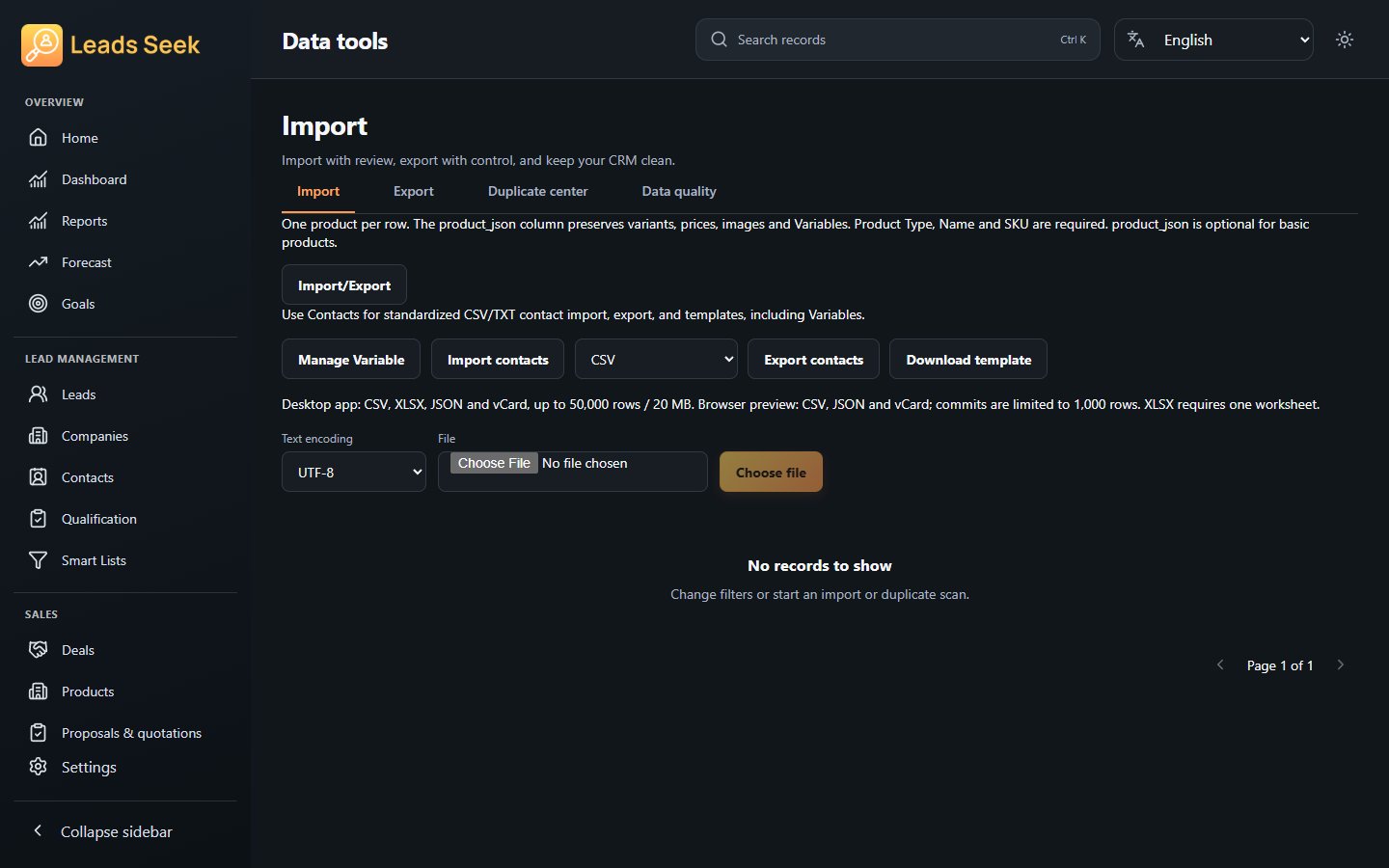
- For CRM transfers, open Data Tools → Imports or Exports. For standardized products, use Products → Import/Export; use the contact transfer controls for contact-specific transfers.
- Choose the file and entity, map supported fields and review the validation preview.
- Resolve missing or ambiguous relationships and choose the supported duplicate handling. Confirm the commit only after reviewing the preview.
- For export, review the selected records, fields and format, then choose a destination file. Protect files containing customer information.
Check the result
A preview is not a completed import. Keep the outcome report and verify representative records. Do not replace the standardized product transfer with a legacy flat product CSV.